
|
Last Site Update: August 18th, 2026 | Latest Version: 13.1.0 |
|
|
|
|
|
|
|
|
|
|
|
|
|
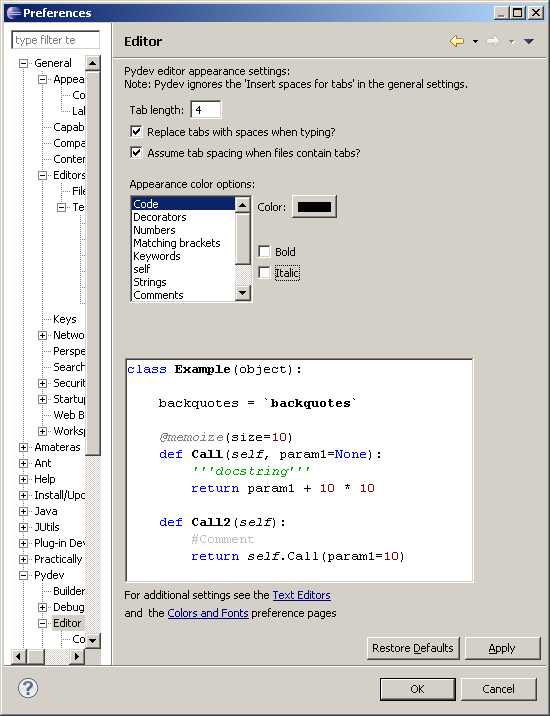
PyDev Editor PreferencesPreferencesThe options in the preferences should be self-explanatory, so, they're only briefly detailed here, but if you don't understand one, please ask in the users forum (so that the spelling of the option is improved). EditorIn window > preferences > PyDev > editor, PyDev can edit the tab settings and appearance colors used in PyDev It's important to have in mind that many preferences, such as print margin, show line number, background/foreground colors, etc. are inherited from the text-editor preferences at general > editors > text editors, and some other preferences are at general > appearance > colors and fonts – there's a link for both at the end of the preferences page.
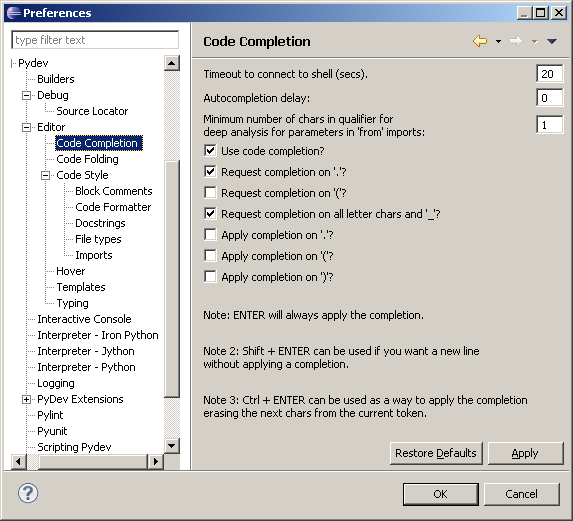
Code CompletionIn code completion preferences, configure how you want the code-completion to work.
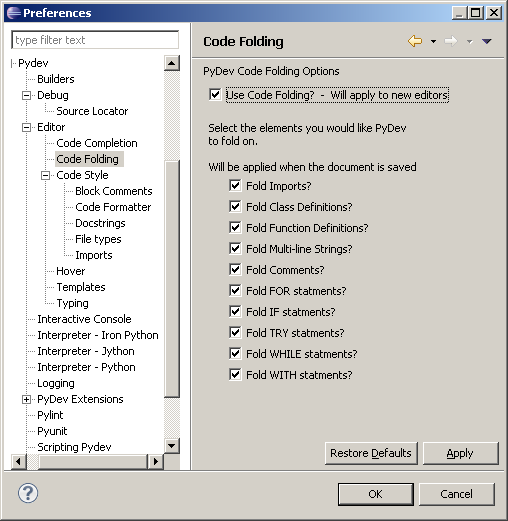
Code FoldingCode-folding: new editors will have it applied.
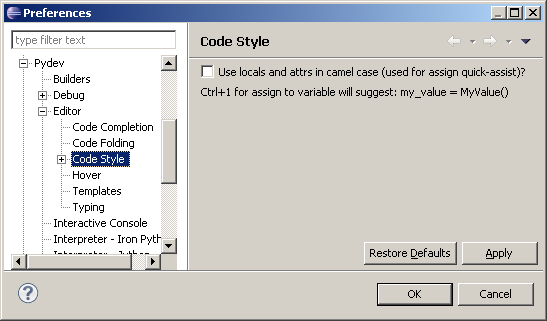
Code StyleCode-style: Choose how you want the assign to variable quick assist assign to work (Ctrl+1): with camel case variables or variables separated with underline (an example is shown when you change it).
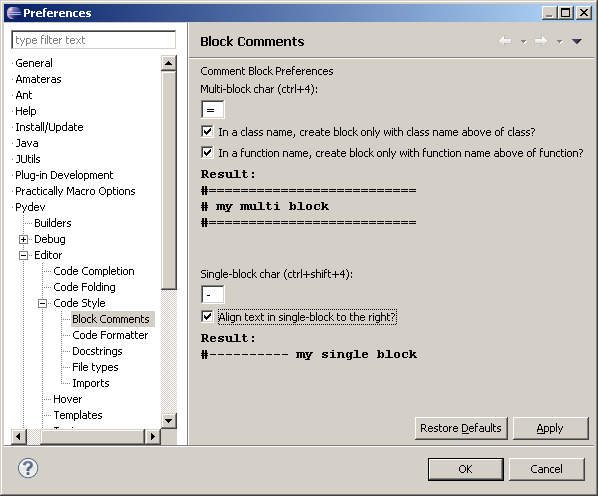
Block CommentsBlock comments are comments formatted in a special way. An example of applying the block comment is shown (2 types of block comments are available: a multi-line and a single line comment).
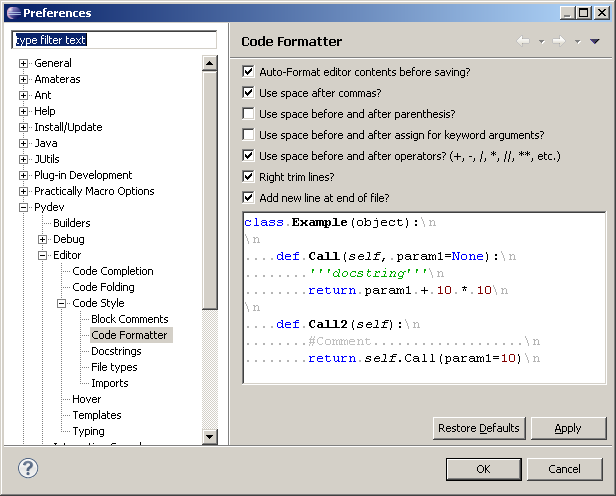
Code FormatterIn the code-formatter preferences page, you can choose different ways of having your code formatted.
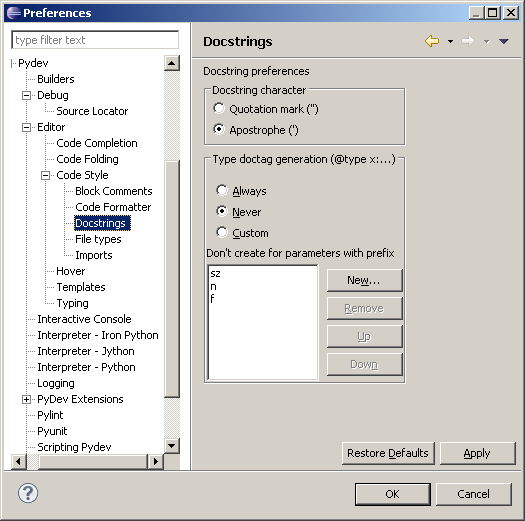
DocstringsWith Ctrl+1 when over a function line, you can create the docstring automatically (and these preferences are used to determine what's the result of doing so)
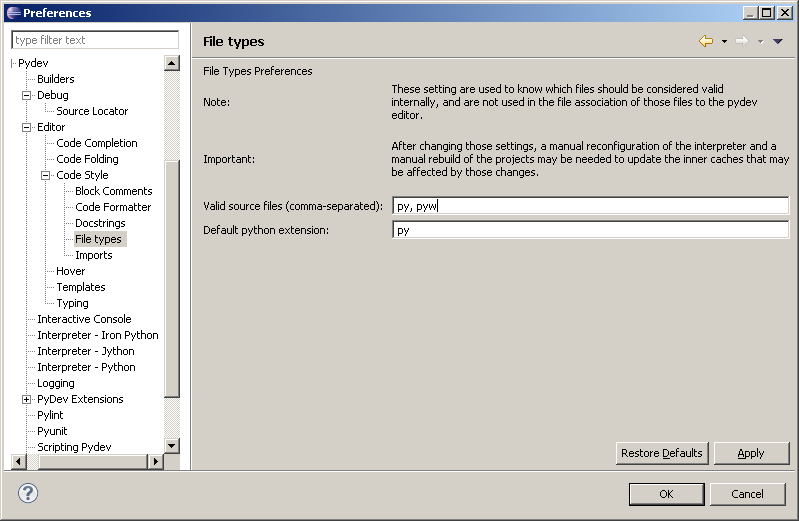
File TypesThe file types indicate which file extensions are recognized for the type inference engine (it's not an association to the file editor)
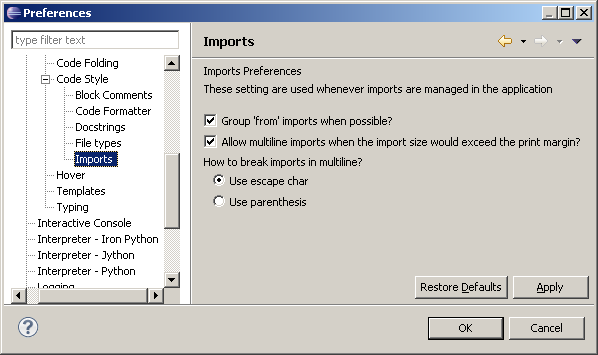
ImportsCtrl+Shift+O can organize the available imports (when no selection is done – if done over a selection it'll do a regular text sort over the selected text), and those preferences indicate how the available imports should be organized.
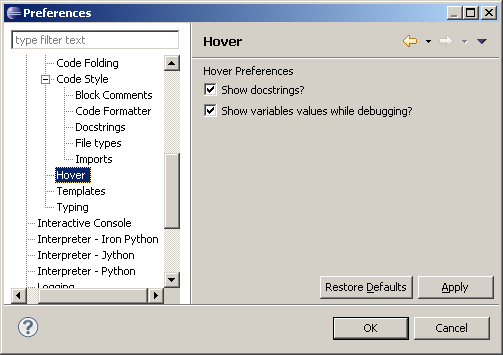
HoverWhat to show on the mouse hover?
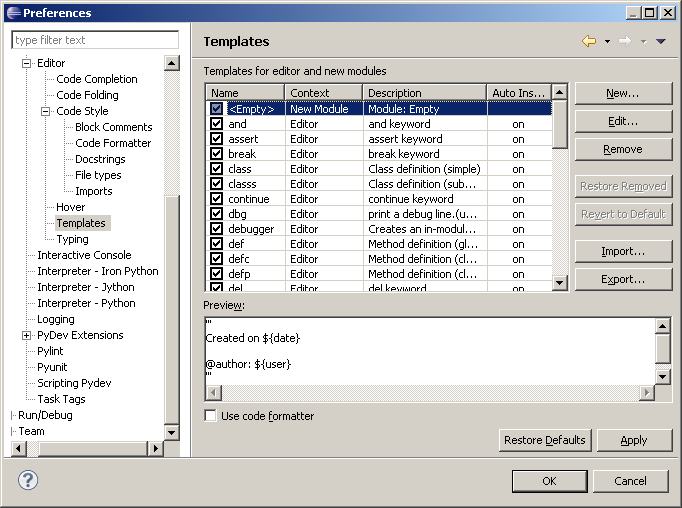
TemplatesHere you can enter new templates. There are 2 contexts, the "Editor" and the "New Module". The templates in the "Editor" context are available for code-completion and the ones with "New Module" are available for the creation
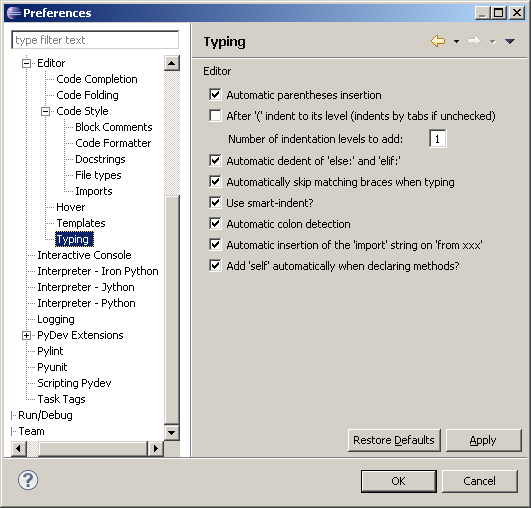
TypingThe typing preferences indicate what should be automatically entered when you're typing text (e.g.: automatic parenthesis, smart indent, etc).
|
PyDev developmentPyDev is open source and depends on your contributions! This may be in the form of bug fixes, answers on stackoverflow, new features...Another option is financially supporting it at: Patreon (which provides a way to support it monthly and get rewards starting with $1). 
Or through 1-time contributions at: Paypal 

Search PyDev-related content |
|
|
|
|
Copyright: Brainwy Software Ltda, 2014-2025 |